Of all the cyber security controls a Geelong small business can put in place, multi-factor authentication (MFA) is the one that delivers the most protection for the least effort and cost. It is the single biggest reason most credential-based attacks fail, it is built into the Microsoft 365 licences your business probably already pays for, and yet a surprising number of local firms still have it switched off, half-configured, or left to staff to set up themselves.
This guide explains what multi-factor authentication actually is, why it matters so much for small businesses on the Bellarine and across the Surf Coast, which type of MFA to use, and how to roll it out across Microsoft 365 without locking your team out of their own accounts. None of it requires a deep technical background - just a willingness to spend an afternoon getting it right.
What is multi-factor authentication?
Authentication is how a system checks you are who you say you are. A single factor - a password - is one piece of evidence. Multi-factor authentication simply asks for a second, different type of evidence before it lets you in.
The three broad types of factor are:
- Something you know - a password, PIN, or passphrase.
- Something you have - a phone, an authenticator app, or a physical security key.
- Something you are - a fingerprint, face scan, or other biometric.
The point of combining factors is that an attacker stealing your password has not stolen your phone, and a thief who grabs your phone does not know your password. Two factors from different categories is what makes MFA work. Just having two passwords is not multi-factor authentication - it is just two of the same weak thing.
In practice, for a Geelong small business, MFA usually looks like this: a staff member types their Microsoft 365 password, then their phone buzzes with a prompt asking them to approve the sign-in, or they type a six-digit code that refreshes every 30 seconds in an authenticator app. That is it. A few seconds of friction that defeats the vast majority of automated attacks.
Why MFA is the one control that actually matters first
Most small-business cyber attacks do not start with a clever exploit or a hacker in a hoodie. They start with a stolen password. A login lands in a phishing email, or a password reused from another breached site is tried against your email and admin accounts, and an attacker walks straight through the front door. The Australian Cyber Security Centre continues to list compromised credentials as one of the most common small-business entry points.
Multi-factor authentication breaks that path. Microsoft's own telemetry has repeatedly shown that MFA blocks the overwhelming majority of automated account-takeover attempts - over 99 per cent of the high-volume, spray-style attacks that hit small businesses every day. No single other control delivers that kind of return for the effort involved.
It is also the control that everything else leans on. The Essential Eight - the Australian Cyber Security Centre's baseline cyber security framework - puts MFA at the centre of its identity protection strategy, and most cyber insurers now refuse to pay out on a claim if MFA was not in place on the account that was compromised. For the plain-English version of that framework, see our Essential Eight guide.
The types of MFA, ranked from weakest to strongest
Not all MFA is equal. Here is how the common options compare, from the one to avoid if possible through to the one we recommend where the stakes are high.
- Email code. A code sent to your inbox. Convenient, but weak - if the attacker has your email password, they have your second factor too. Avoid for anything important.
- SMS text code. A code sent by text message. Better than nothing, and better than email, but vulnerable to SIM-swap attacks where a thief convinces your telco to move your number to their phone. Use it only when nothing better is available.
- Authenticator app (time-based code). An app like Microsoft Authenticator or Google Authenticator generates a rolling six-digit code. No text message to intercept, works without signal after first setup, and is free. This is the sweet spot for most small businesses.
- App push approval.Microsoft Authenticator sends a prompt: "Approve sign-in?" You tap approve. Fast, easy, and number-matching makes it resistant to approval fatigue. Our default recommendation for Microsoft 365 tenants.
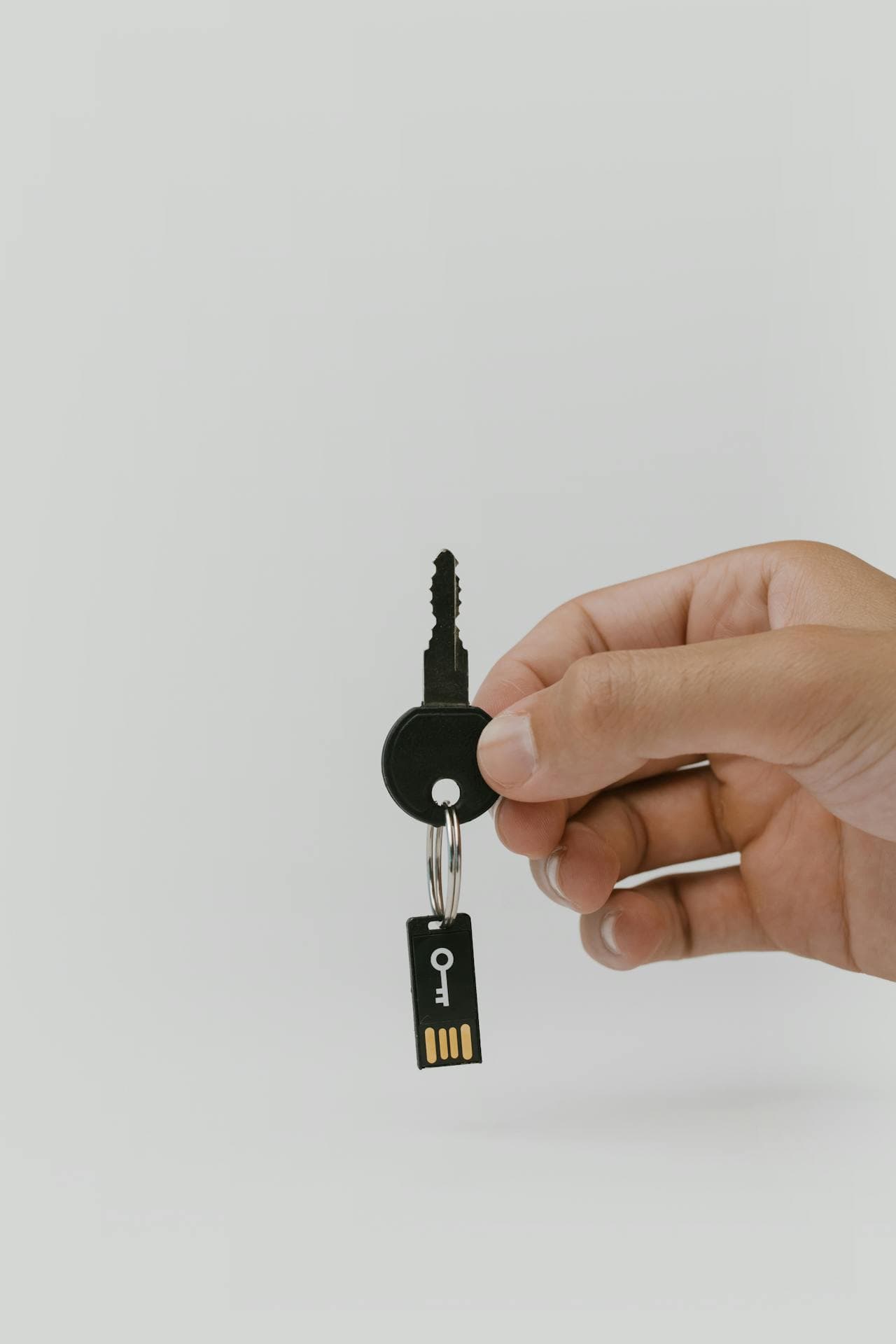
- Hardware security key. A physical device like a YubiKey you tap or plug in. Phishing-resistant by design, because the key checks the real website and refuses to work on a fake one. The strongest option, and the one we use for admin and finance accounts where the cost of a breach is highest.
The practical message: start with the Microsoft Authenticator app for everyone, and add hardware keys for admins, finance, and anyone who can move money or access sensitive client data. SMS is acceptable for low-value accounts only.
Rolling out MFA across Microsoft 365
Most Geelong small businesses run on Microsoft 365, which means MFA is already included in your licence. The work is configuration, not purchasing. Here is how to do it in a way that does not descend into chaos on the Monday morning after switch-on.
- Turn on security defaults or conditional access. Security defaults are the simple, one-click option Microsoft provides for small tenants, and they enforce MFA for everyone. Conditional access is the more flexible policy engine, and is what we use once a business outgrows the defaults - it lets you require MFA only on risky or new-device sign-ins, which reduces prompts.
- Block legacy authentication. This is the quiet killer. Older protocols like IMAP, SMTP, and POP3 bypass MFA entirely, so an attacker can sidestep all your good work with an old email client. Block them in the tenant before you do anything else.
- Set up admins first, then a small pilot. Get your admin accounts on MFA with backup methods configured, then migrate a few willing staff before the whole business. This surfaces problems while the blast radius is small.
- Register backup methods. Every account needs at least one alternative MFA method on file - usually an app code plus a backup phone number - so a lost or broken phone does not become a lockout incident.
- Create break-glass admin accounts. Keep at least two emergency admin accounts, stored securely, with long random passwords and MFA on a separate device. If your normal admin gets locked out, these get you back in without a panicked call to us.
- Brief the team. A five-minute walkthrough before the cutover - what the prompt looks like, what to do if their phone is dead, who to call - takes the fear out of it. Most pushback on MFA is just unfamiliarity.
If you want a hand, our Microsoft 365 services cover setup, hardening, and ongoing management, and we run these rollouts for Geelong businesses regularly. MFA is also where a lot of cyber insurance compliance work starts, because insurers now expect it as a baseline.
The common MFA mistakes to avoid
The businesses we see struggle with MFA almost always made one of a small number of mistakes. None of them are about the technology - they are about skipping the planning.
- Turning it on for everyone at once with no pilot. The first sign of a problem is half the firm locked out on a Monday. Pilot first, always.
- Forgetting legacy protocols. MFA on the modern sign-in means nothing if an old printer or scanner is still logging in over IMAP. Block and migrate.
- No break-glass admin. When the one admin with the authenticator app loses their phone, the business is stuck. Always have a backup way in.
- MFA on staff but not on shared mailboxes and contractors.Attackers go for the easiest account, which is often a shared mailbox left without MFA, or a contractor whose access was never enrolled.
- Relying on SMS for everything. Fine to start, but an SMS-only tenant is the one most likely to be bypassed by a targeted SIM-swap. Move to the app as soon as you can.
What to do if your account is secured but you suspect a breach
MFA dramatically reduces the chance of an account takeover, but it is not a complete defence on its own. If your team reports a suspicious prompt, repeated unexpected MFA approvals, or logins they do not recognise, treat it seriously. Attackers will sometimes spam approval prompts hoping a tired user taps approve - which is why number-matching and the "deny" option on the authenticator app matter.
The first steps are: deny the prompt, report it to whoever looks after your IT, and have them review the sign-in logs and revoke suspicious sessions. If it escalates into a real incident, our guide on what to do when your business has been hacked walks through the first-hour response, and our cyber security services cover both prevention and incident response.
Getting help with MFA in Geelong
Multi-factor authentication is one of the rare security controls that is cheap, powerful, and already mostly paid for - it just needs to be configured properly. Most Geelong small businesses can have a solid, app-based MFA setup across Microsoft 365 within a day or two, with hardware keys added for the handful of high-value accounts that need them.
If you are not sure whether your tenant is properly protected, run through our Geelong IT health check checklist - MFA is one of the first items on it. And if you would rather have it done properly the first time, get in touch and we will tell you honestly where your identity security stands and what to fix first.